
Automatic Setup
1. Launch Outlook 2011.
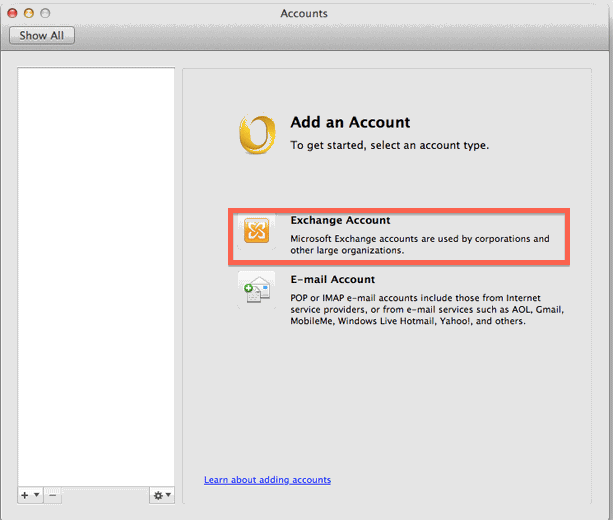
2. Click Add Account.
3. Select the Add Exchange button.
4. Type in your full email address.
5. Under Authentication:
Method: Username and Password
Username: Full email address
Password: your mailbox password
(check the box configure automatically)
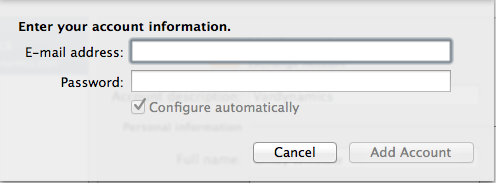
6. Select the Add Account button.
7. In the account description type in whatever you would like to name the account. (e.g. work, exchange, pop)
If the account does not configure automatically, please use the following configuration:
1. Launch Outlook 2011.
2. Click Add Account.
3. Select the Add Exchange button.
4. Type in your full email address and password.
5. Uncheck 'Configure Automatically'.
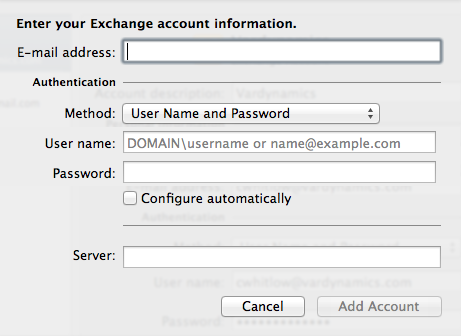
Method: Username and Password
Username: Full email address
Password: your mailbox password
(un-check the box configure automatically)
6. Add Account.
7. In the server box type in: na02.msexchangeoutlook.com
8. In the account description type in whatever you would like to name the account. (e.g. work, exchange, pop)